Where to Manage Login and Roles:
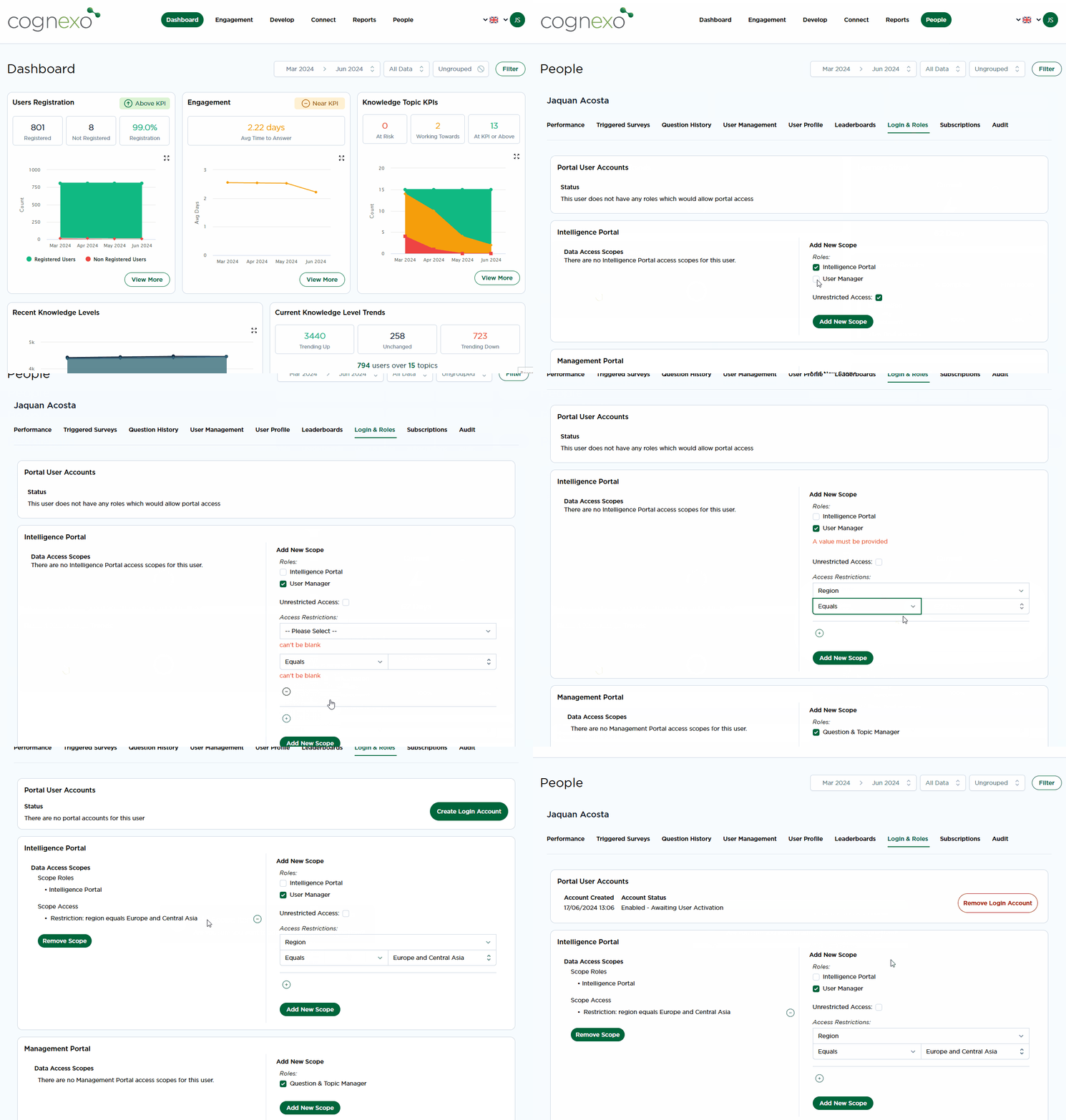
- Click on the People tab situated in the top navigation bar, search or select the user you want to give access and you will find an tab labelled Login and Roles.
- Once in the Login and Roles tab, look for the Add New Scope section. This is where you define the specific roles and permissions for the new manager.
Set Access Level:
- Depending on your organisational structure and security requirements, you can choose to grant unrestricted access or apply restrictions based on tags such as department, division, or region. This allows you to tailor the manager's access to relevant parts of the organisation or specific users such as their own team by restricting access to only users with their own email as the users line manager email.
Creating New Manager Login Credentials:
- Once the login roles are set up, you need to grant access to the manager. At the top of the interface, click Create Login Account..
- Click OK, this initiates the process where the system sends an email notification to the manager's registered email address (their Cognexo Email).
- The manager will receive an email with instructions to validate and verify their email address. They will also be prompted to set a password for their initial login into the system.
Once managers are added to the platform, the user will receive an email with a one-time code to enter so they can set their own password.
Step by step visual:
Changing, Removing, and Troubleshooting Portal Access
Changing a user's access level:
To change what an existing user can see in the portal (e.g., expanding their scope to a wider division, or restricting them to their own team after a role change):
1. Go to People and find the user.
2. Open the Login and Roles tab.
3. Edit or remove the existing scope under Add New Scope and set the new parameters.
4. Save changes. The new scope takes effect on the user's next login.
Removing portal access
To remove Intelligence Portal access from a manager who is no longer in a management role (without disabling their learner account):
1. Go to People → find the user → Login and Roles tab.
2. Remove all scopes from the Add New Scope section.
3. The user will retain their learner account and question history but will no longer be able to log in to the Intelligence Portal.
| 💡 Note | Removing portal access does not disable the user's learner account. They will still receive questions as a learner. If you want to stop both portal access and question delivery, you need to remove the portal scope AND disable the learner account separately. |
Granting SME (topic owner) access
SME access allows a user to view and edit the questions in specific topics they own. To grant SME access:
1. Go to People → find the user → Login and Roles tab.
2. Under Add New Scope, select the "Topic and Configuration" permission.
3. Click Create Login Account if the user does not already have portal access.
Manager has lost their login link
The Intelligence Portal is accessed via a unique link included in the daily questions email. If a manager has lost this link:
1. Go to People → find the manager → Login and Roles tab.
2. Click Resend Login Email. This will send a fresh link to their registered email address.
The direct portal URL is https://intelligence.cognexo-app.com — managers can bookmark this directly once they have logged in.
Checking a user's current access level
To see what access a user currently has, go to People → select the user → Login and Roles tab. All active scopes are listed here, including what they can see (e.g., which department or division) and what they can do (e.g., topic editing, reporting only).