This article explains how to add, update, and disable users within the platform. Understanding how to manage user accounts is important, as user data is used to ensure the right content is delivered across different topics.
Adding a new user
- Log in to Cognexo using your manager credentials.
- Navigate to the People tab.
- Click on the "Add New User" button.
- Enter the required information for the new user.
- Click the "Save" button to add the new user to the system.
Tips and Considerations:
- Fields marked with an asterisk(*) are mandatory for your organisation.
- Double-check the information entered for accuracy, the people data is used to deliver the correct content.
How to enable/disable a user
- Navigate to the People tab on the top navigation bar.
- Select any user and click View More to enter their profile.
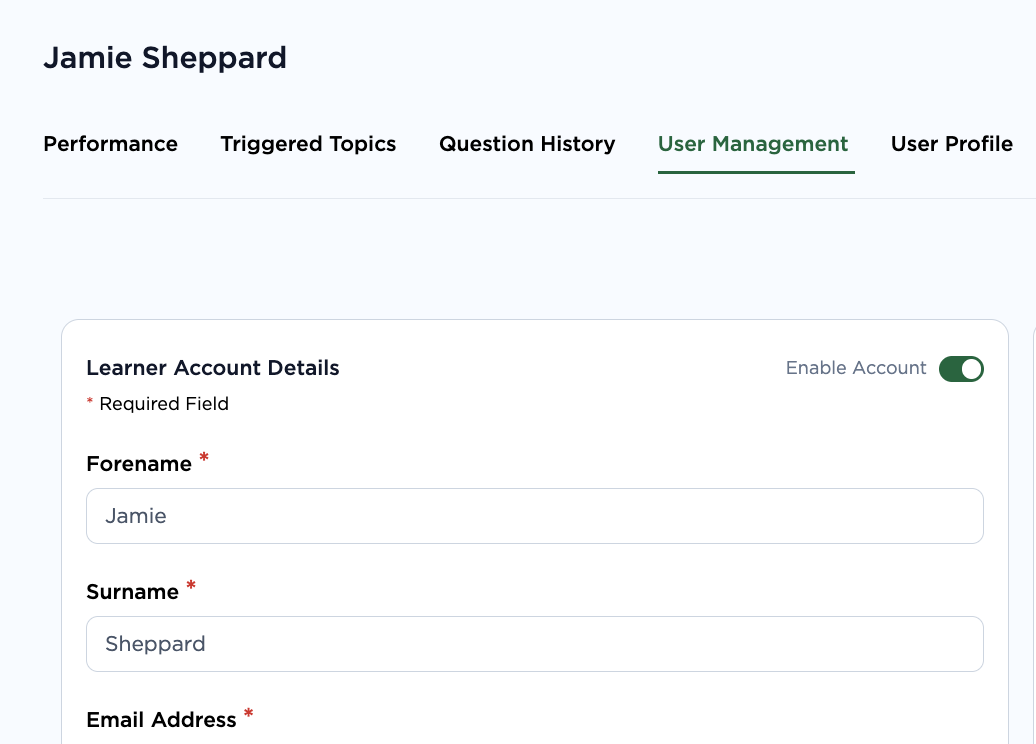
- Go to User Management.
- Toggle the Active/Deactivate User button.
- A modal will appear, allowing you to either disable or suspend the user.
- Disabling a user: The user will no longer use the tool and will not be automatically re-enabled.
- Suspending a user: You can select a date for when the user should be reactivated to start receiving questions from the system again.
- Ensure you press Save
Why would you Disable or Suspend a user?
- A user will no longer be using Cognexo (removing a user from the system and therefore disabling their account).
- A user is on Short term or long term sick
- A user is on Maternity/Paternity
Suspending a user in the line manager dashboard
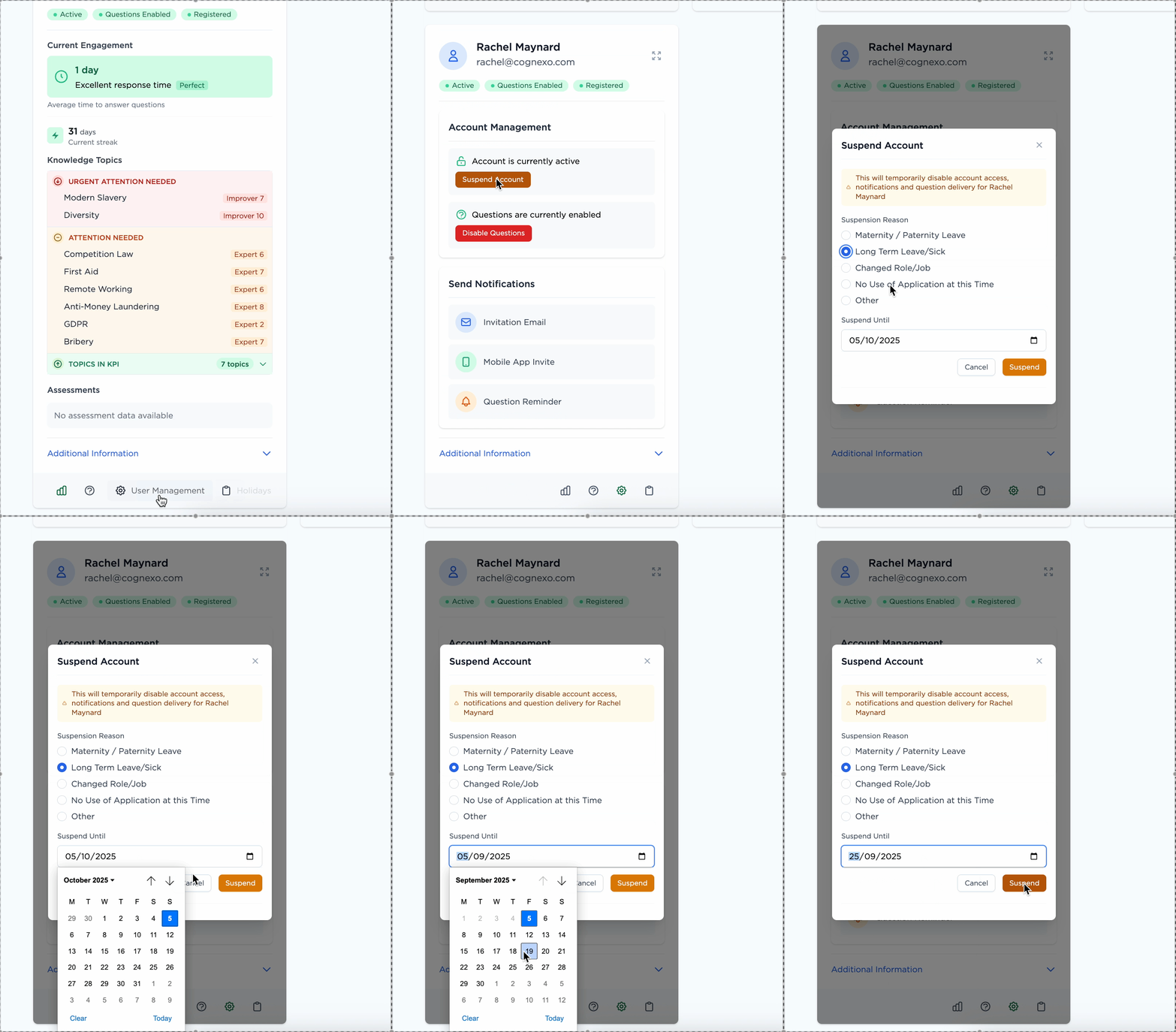
- Select your user and click on the cog icon in the bottom right for User Management
- Select Suspend Account
- Choose your reason, select the date until and Save